CSV Data Merge
Data merge in Chitmunk turns a spreadsheet into a deck. Attach a spreadsheet (a .csv file works, and so do Excel files and Google Sheets), add a field to a text box, and Chitmunk generates one card for every row. The same template handles 5 cards or 500. Image links, conditions that show or hide parts of a card, and text transforms (upper, lower, truncate) all work from the same data. This guide walks through preparing your spreadsheet, bringing it in, linking columns to text and images, hiding parts of a card when a column is empty, and how many of each card to print.
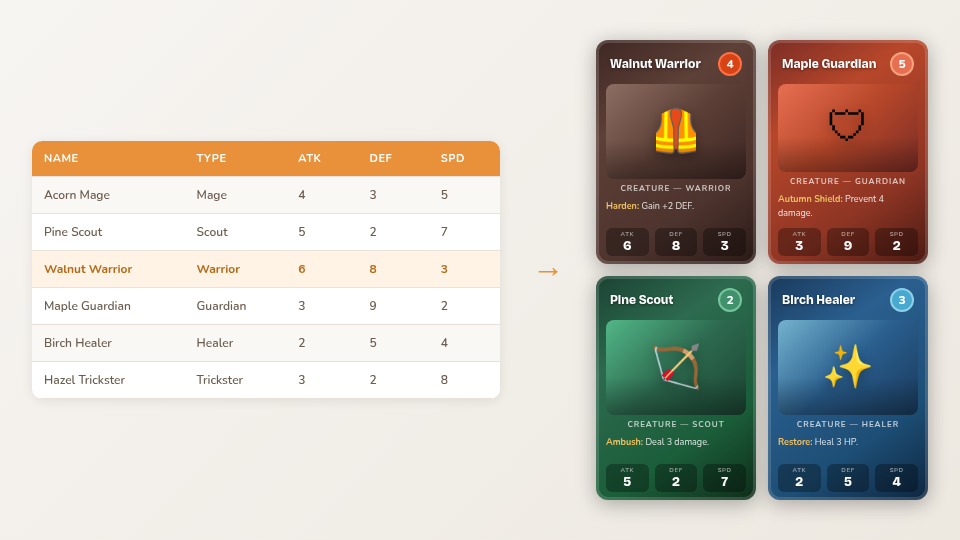 One template, one spreadsheet, every card filled automatically.
What Is Data Merge?
Imagine you are designing a deck of 60 monster cards. Each card has the same layout: a title at the top, an illustration in the middle, and stats at the bottom, but the content differs for every monster. Without data merge, you would need to edit 60 individual cards by hand. With data merge, you design the layout once and let a spreadsheet supply the unique content for each card.
This approach has several advantages:
- Speed: Design once, generate dozens or hundreds of cards instantly.
- Consistency: Every card uses the exact same layout, so changes to the template apply everywhere.
- Iteration: Update your spreadsheet and the cards update automatically, no need to re-edit individual cards.
- Separation of concerns: Game designers can focus on data (balance, flavor text) while graphic designers focus on layout.
Preparing Your Spreadsheet
Your spreadsheet is a simple table where:
- The first row contains column headers (field names).
- Each subsequent row represents one card.
- Column names can contain spaces and mixed case (e.g., "Card Name", "Attack Power").
You can create CSV files in any spreadsheet application: Google Sheets, Excel, LibreOffice Calc, by saving or exporting as CSV (or keep the .xlsx). Here is an example:
Name,Type,Attack,Defense,Description,Image URL
Fire Drake,Dragon,8,5,A fearsome wyrm that breathes scorching flames.,https://example.com/fire-drake.png
Stone Golem,Construct,6,9,An ancient guardian carved from living rock.,https://example.com/stone-golem.png
Shadow Thief,Rogue,7,3,Strikes from the darkness before you see the blade.,https://example.com/shadow-thief.png
Forest Sprite,Fey,4,4,A playful trickster of the woodland realm.,https://example.com/forest-sprite.png
Iron Knight,Warrior,7,8,Clad in impenetrable plate from helm to heel.,https://example.com/iron-knight.png
Tip: Keep column names short but descriptive. You will be using them as {{Column Name}} fields, so "ATK" is easier to work with than "Monster Attack Power Rating".
Bringing In Your Spreadsheet
Open the Data stage. With no spreadsheet yet it says "No card list yet" and offers:
- Bring in my spreadsheet: choose Upload a spreadsheet file (.csv, .tsv, .xlsx or .xls), or link Google Sheets or Excel on OneDrive (see the Sheets guide below).
- Drag and drop: drop a spreadsheet file anywhere on the Data panel.
- Start a blank table and type your cards in, or start from a sample deck.
After loading, Chitmunk shows the number of rows (cards). The card preview in the Data stage reads, for example, "Row 3 of 36 becomes this card. 4 of 9 columns are on the card (green dots)." Use the Previous card and Next card buttons to step through every row.
Link Columns Without Typing
You do not have to type {{Column Name}} yourself. Once a spreadsheet is loaded, the Design stage's Add panel shows a From your spreadsheet row under Text, with a count such as "2 of 15 on the card". Open it to see every column with its value for the current card. A green dot means the column is already on the card.
- Click a field while one unlocked text box is selected, and that box is linked to the column. With nothing selected, a new linked text box is added in the middle of the card.
- Drag a field onto a text box to link that box, or onto an empty part of the card to add a new linked box where you drop it.
- Same names link themselves. When you load a spreadsheet onto a template (or apply a template over a loaded sheet), text boxes named like a column, such as a box named "Cost" and a column named "Cost", are linked for you. A message says "Linked 4 of 15 fields by name" and offers Undo linking.
- Unlink a box in the text settings: a linked box shows "From the Name column" with an Unlink button, and the box keeps the words it shows now. You can also pick or change the column in the Spreadsheet link row of the inspector.
Linking writes {{Column Name}} into the text for you, so everything in the next section still applies.
Template Syntax
To make an element dynamic, use double-curly-brace syntax in text content:
{{Column Name}}For example, if your CSV has a column called "Name", type {{Name}} in a text element. Chitmunk replaces it with the value from the current row. You can mix static text and template tags freely:
ATK: {{Attack}} / DEF: {{Defense}}This would render as "ATK: 8 / DEF: 5" for the Fire Drake row.
Fallback Values
If a column might be empty for some rows, you can provide a default value using the || operator:
{{Subtitle || 'No subtitle'}}If the "Subtitle" column is empty or missing for a given row, the text "No subtitle" will be displayed instead.
Text Transforms
You can transform text values using pipe operators:
| Syntax | Result | Example |
|---|---|---|
{{Name|upper}} |
UPPERCASE | "Fire Drake" becomes "FIRE DRAKE" |
{{Name|lower}} |
lowercase | "Fire Drake" becomes "fire drake" |
{{Name|capitalize}} |
First letter capitalized | "fire drake" becomes "Fire drake" |
{{Description|truncate:50}} |
Truncate to N characters | Cuts text to 50 characters and appends "..." |
{{Name|trim}} |
Remove leading/trailing whitespace | " Fire Drake " becomes "Fire Drake" |
Transform Chaining
You can chain multiple transforms together using additional pipe operators. Transforms are applied left to right:
{{Name|trim|upper}}This first trims whitespace from the value, then converts the result to uppercase.
Linking Images to Columns
Text boxes use {{Column Name}} directly in their content. Images work differently: they link to a column.
- Select an image on the card.
- In the inspector, find the Spreadsheet link row and choose a column.
- The column should hold an image address starting with
https://, or an image added directly to a cell in the Data stage (drop an image file onto a cell).
When the row changes, Chitmunk loads the picture from the linked column and shows it in the image box. Rows with an empty or unusable cell keep the image's own picture. This lets you assign unique artwork to each card automatically.
Tip: Image addresses must be publicly accessible (no login) and start with https. For art you do not have online yet, drop the files into the cells, or use The Acorn Cauldron to create art for every row (see the AI art guide).
Conditional Visibility
Sometimes you want an element to appear only on certain cards. For example, a "Flying" badge should only show on cards where the Type is "Dragon". Chitmunk supports conditional visibility rules on any element.
Select an element and open the Condition section in the inspector. Click + Add condition, choose a column, a comparison and a value. The comparisons are the operators below (the builder shows them as words, such as "equals" and "starts with"; between is available when typing an expression). Written out as expressions:
| Operator | Meaning | Example |
|---|---|---|
== |
Equals | {{Type}} == 'Dragon' |
!= |
Not equals | {{Type}} != 'Construct' |
> |
Greater than | {{Attack}} > 6 |
< |
Less than | {{Defense}} < 5 |
contains |
Text contains substring | {{Description}} contains 'fire' |
!contains |
Text does not contain substring | {{Description}} !contains 'ancient' |
>= |
Greater than or equal to | {{Attack}} >= 6 |
<= |
Less than or equal to | {{Defense}} <= 5 |
startsWith |
Text starts with substring | {{Name}} startsWith 'Fire' |
endsWith |
Text ends with substring | {{Name}} endsWith 'Knight' |
isEmpty |
Value is empty or blank | {{Subtitle}} isEmpty |
isNotEmpty |
Value is not empty | {{Image URL}} isNotEmpty |
between |
Value is between X and Y (inclusive) | {{Attack}} between 3 and 7 |
When the condition is false for a given row, the element is hidden on that card. When it is true, the element is visible.
Boolean Logic
In the Condition section, add several rules and choose All of these must match (AND) or Any one of these can match (OR). Typed expressions, which you meet in templates, can also combine conditions with boolean operators:
AND: Both conditions must be true:{{Attack}} > 5 AND {{Type}} == 'Dragon'OR: At least one condition must be true:{{Type}} == 'Dragon' OR {{Type}} == 'Fey'NOT: Negates a condition:NOT {{Type}} == 'Construct'
Use parentheses for grouping when combining multiple operators:
({{Attack}} > 5 AND {{Defense}} > 5) OR {{Type}} == 'Dragon'This shows the element on any card with both Attack and Defense above 5, or on any Dragon card regardless of stats.
Show on Every Card
By default, elements with a condition are hidden when it is false. To make an element appear on every card whatever any rule says, check Show on every card at the bottom of its Condition section (the element is then called a master element). Use this for card borders, background frames, and logos.
The Data Stage
For heavy data work, open the Data stage. It pairs your spreadsheet with a live preview of the current card. Click a cell to edit it, and the card updates as you type. Map columns to the card suggests which column fills which part of the card, and Edit this card takes you back to the Design stage. The Data Mode guide covers the table in depth.
How Many of Each Card
Some cards appear more than once in a box. Add a column named Copies (Qty, Quantity and Count work too) and put a whole number in each row:
- A number prints that many of the card, so
3makes three. 0skips the card, handy for a card you are not ready to print.- Blank (or anything that is not a whole number) means 1.
Print at home, the image and PDF exports, the TheGameCrafter upload (it becomes the quantity for each card) and the playtest table all follow this column, so you only set it once.
Workflow Summary
- Design your card layout with placeholder elements.
- Link columns to text boxes and images (click fields in the Add panel, or type
{{Column Name}}). - Bring in your spreadsheet in the Data stage.
- Step through cards with Previous card and Next card to verify your design works across all rows.
- Set conditional visibility on elements that should only appear on certain cards.
- Use the Data stage for fine-tuning, and a Copies column for repeats.
- Print or export every card from the Export stage.
Tip: You can update your spreadsheet at any time. Bring the file in again and all your cards regenerate with the new data. Your layout and links are preserved.
Google Sheets and Excel
You can link a Google Sheet or an Excel file on OneDrive instead of uploading a file, and refresh it whenever the sheet changes. The steps, sign-in and what is written back are in Google Sheets and Excel Links.