Print-Ready Checklist
Find the text that would get trimmed off before the print shop does. Chitmunk's print-ready checklist makes professional printing predictable. Every card needs a 0.125 inch bleed (artwork extending past the cut line) and a 0.125 inch safe zone (no important text near the cut line). Proof scans for text outside the safe area, small text, missing images, low-resolution pictures, and thin borders at the edge before you export, and it names your print shop (TheGameCrafter unless you picked another) in its checks. This guide explains bleed, safe zones, the validator, and which export format to pick for your print shop.
 The export window: pick what you need and download.
Understanding Bleed Zones
The bleed zone is a 0.125-inch (1/8") border around the outside of your card. This area exists because cutting machines are not perfectly precise; there is always a small amount of variation in where the blade falls.
Here is what you need to know:
- Extend backgrounds and art into the bleed. If your card has a colored background or a full-bleed image, it must extend all the way to the outer edge of the bleed zone. Otherwise, you may end up with thin white strips along the edges where the cut was slightly off.
- Do not put important content in the bleed. Anything in the bleed zone may be cut off. Keep text, icons, and critical artwork inside the safe zone.
- The bleed is part of your exported image. When you export for print, Chitmunk includes the bleed area. The print service uses it during the cutting process and then trims it away.
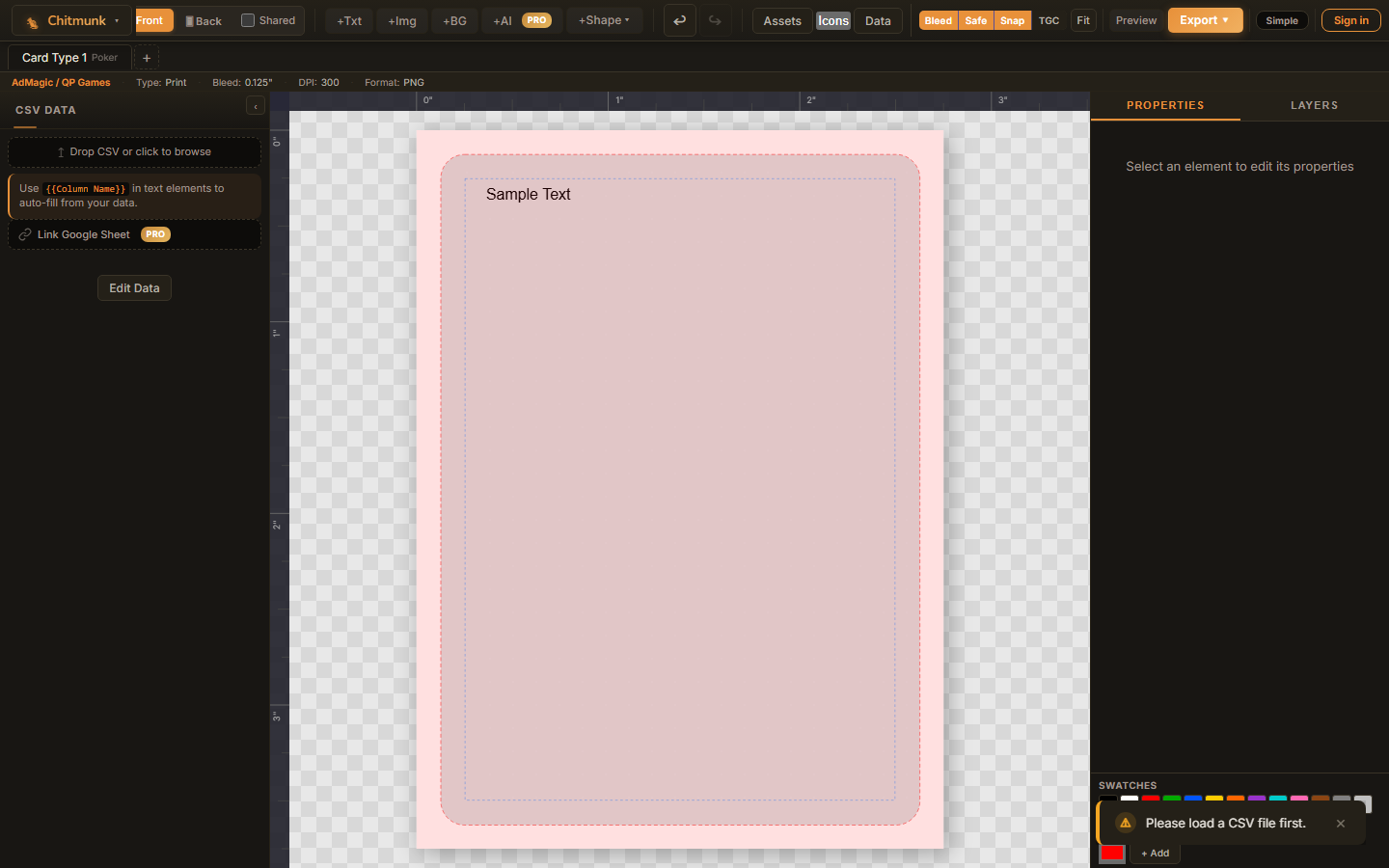
Show the bleed zone with View in the toolbar, then Bleed edge (or press B). It appears as a shaded border around your card.
Understanding Safe Zones
The safe zone is the inner area of the card that is guaranteed to be visible after cutting. It is inset from the cut line by another 0.125 inches. All important content: text, logos, key artwork, should be placed within the safe zone.
Think of the three zones from outside to inside:
- Bleed zone (outer edge): Will be trimmed off. Fill with background color/art only.
- Trim zone (middle): The intended cut line. Content here is risky; it might be visible or might be cut.
- Safe zone (inner area): Everything here will definitely be visible on the final card.
Show the safe zone with View, then Safe area (or press S). Trimmed print proof in the same menu shows the card as it will look after cutting.
Print Overlay
Use the View menu in the toolbar and turn on Print-shop template. This shows your print shop's template outline for the selected card size, including cut lines and fold lines where the shop provides them. It is a transparent layer that sits on top of your design so you can verify alignment.
You can adjust the overlay with the Template overlay slider that appears in the properties panel when the overlay is on. This lets you see your design through the overlay without it being too distracting.
The print overlay appears as a locked Print guide layer at the top of the layers panel. It cannot be selected, moved, or deleted; it is purely a visual reference.
Running Proof
Chitmunk includes Proof, an automated check for common print problems. You can reach it two ways:
- Export page: The line "N things to check before printing" opens the Proof stage (it only appears when there is something to check), and Proof is also a tab in the band at the top. Each issue has a Go to card button that opens that card in the editor. If your art came from the AI studio, a "placeholder art" row tells you which pieces to swap before you print.
- In the editor: The proof chip over the canvas shows "N to check" for the open card and hides when the card is clean.
Common Warnings
| Warning | What It Means | How to Fix It |
|---|---|---|
| Element outside bleed area | An element extends beyond the bleed zone and will be completely cut off. | Move or resize the element so it fits within the bleed area. |
| Text too close to edge | Text is in the bleed or trim zone and may be partially cut off. | Move the text element so it is fully inside the safe zone. |
| Missing image | An image element references a file that cannot be found (it was deleted or never finished loading). | Re-upload the image or remove the element. |
| Very small text | Text is below a readable size for print (under about 8pt). | Increase the font size or remove the element if it is not needed. |
Tip: Validation warnings do not prevent you from exporting. They are advisory, sometimes you intentionally want an element in the bleed zone (like a decorative border that bleeds off the edge). Use your judgment.
Which Export to Use
The Export page has a row for each job:
Card Images (Recommended for Print Services)
The standard choice. Each card face is saved as a separate PNG file at 300 DPI: the standard resolution for professional printing. DPI (dots per inch) determines print quality. 300 DPI is the standard for professional printing; lower values like 150 DPI may appear fuzzy, while higher values offer diminishing returns. PNGs are bundled into a ZIP file for easy download.
- Includes the bleed zone in each image.
- Lossless quality: no compression artifacts.
- Compatible with virtually every print-on-demand service.
- If you use a spreadsheet, every card is exported (one image per row).
Print-Shop PDF
Note: Print-shop PDFs, Play online files, and 300 DPI card images are included in every plan, starting with Common ($2.99/mo or $24.99/yr).
For printers that accept PDF files. Chitmunk makes a multi-page PDF with your cards laid out on the page and print-shop colors (CMYK). Cut lines are an option on the same screen.
- Page size: Letter, A4, Legal, Tabloid, A3, or a custom size.
- Cut lines: Short lines printed at each corner showing where to cut. These are the standard marks professional printers expect.
Print at Home
For proofing on paper or prototyping with scissors. Pick how you will print (Fronts only, Both sides, Fold and cut, or Sleeve inserts), check the preview, and press Make my PDF. Print at Actual size (100%), and flip on the long edge for two-sided printing. The Export Options guide has the details, including the alignment test page for lining up backs with fronts.
Other Choices
- Card images as JPEG or WebP: Smaller files than PNG. JPEG has slight quality loss, so it is best for sharing previews, not final print. WebP has excellent compression; check that your print service accepts it.
- Play online: For Tabletop Simulator, an image sheet that packs all your cards into one big image that TTS can split into individual cards.
- TheGameCrafter: Uploads your cards to a TheGameCrafter game, or saves images ready for you to upload by hand.
Export Settings
Open the Export page from the Game Home dashboard. Each row asks only what it needs, and remembers your answers. In the editor's export window, More options sets file names and image quality:
- Quality: For JPEG and WebP, adjust the compression quality (higher = larger file, better quality).
- Which cards: Every export includes all of your decks unless you pick fewer.
Recommended Workflow
Follow this workflow to go from design to print-ready files:
- Design your cards. Use templates, a spreadsheet, and AI generation as needed.
- Show Bleed edge and Safe area (View menu) to verify your layout respects the margins.
- Turn on Print-shop template (View menu) to double-check alignment with your shop's template.
- Open "things to check" on the Export page and fix any warnings. Use Go to card to jump to each problem.
- Browse all card variants with Show all cards (the card strip at the bottom) to spot any data or layout issues.
- Export card images at 300 DPI for your print service, or make a Print-shop PDF. To proof on paper first, use Print at home.
- Review the exported files before uploading to your print service. Open a few images at full resolution to check for any issues Proof may have missed.
Print Service Tips
- Check the service's requirements. Different print-on-demand services have specific file format, resolution, and bleed requirements. Chitmunk's 300 DPI PNG export with bleed meets the requirements of most major services.
- Order a proof. Before placing a large order, order a single proof copy to check colors, readability, and cut accuracy in person.
- Colors may shift. Screen colors (RGB) and print colors (CMYK) do not always match perfectly. Vibrant neons and very saturated colors may look different in print. If color accuracy is critical, consult your print service's color guidelines.
- Dark backgrounds near edges are forgiving. If your card has a dark border, small cutting inaccuracies are nearly invisible. Light or white backgrounds near the edge make misalignment more obvious.
Tip: Save your project before exporting. While Chitmunk autosaves frequently, an explicit save gives you a recoverable snapshot of the exact design you exported.