Getting Started
Chitmunk is a browser-based card designer for board game creators. Nothing to install. This guide takes you from nothing to a printed card: create a game, add text and a picture, link one column of a spreadsheet, check the card in Proof, and print it once. Everything here is on every plan, including the 7-day free trial.
Create Your Game
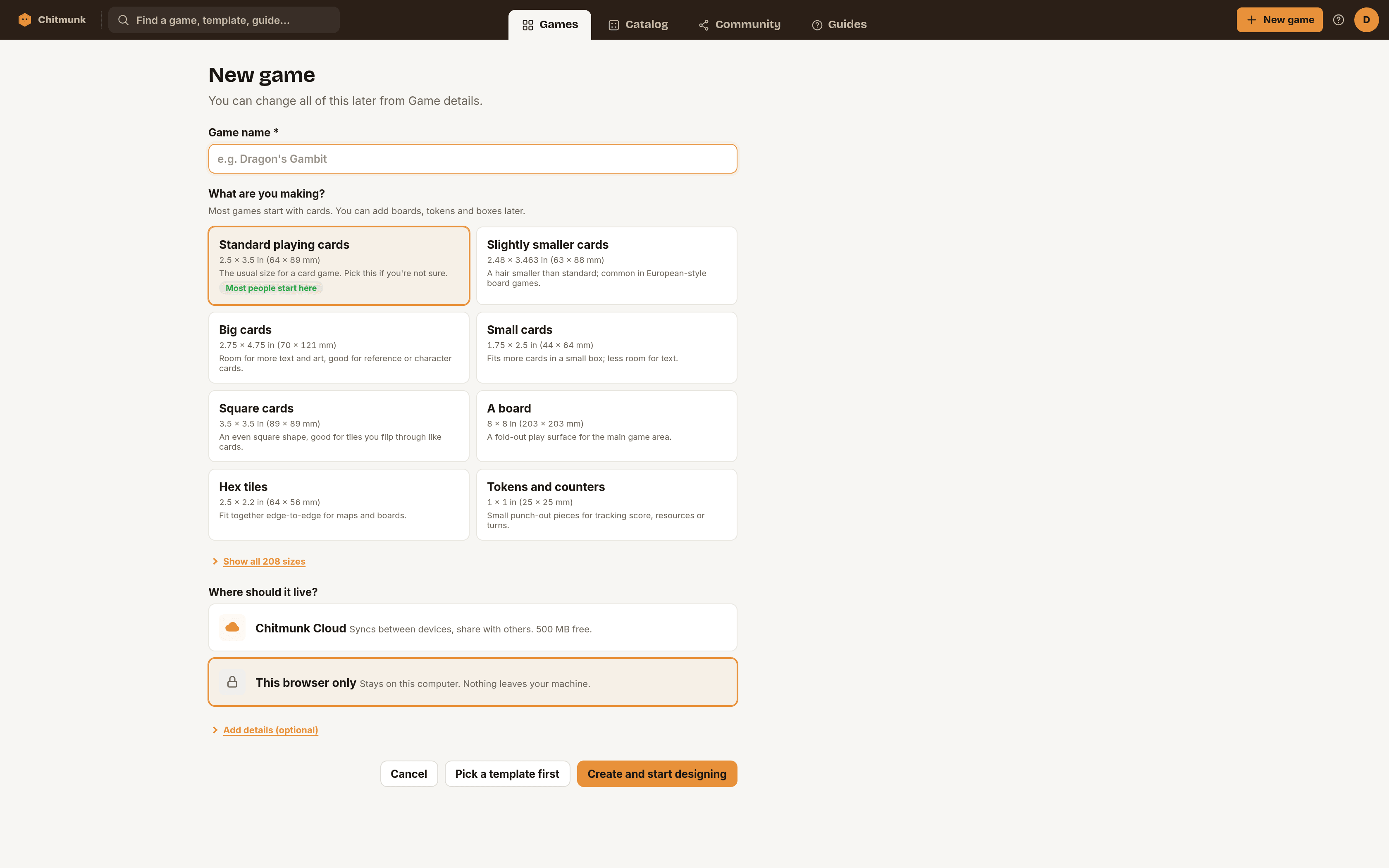
Go to chitmunk.com/home and choose New game. The form is short:
- Game name: the only required field, for example "Dragon's Gambit".
- What are you making? Pick a card size. A few common sizes show first, and the one most people start with is marked. Choose Show all sizes to search the full list. You can change the size later from the game menu.
- Where should it live? Chitmunk Cloud syncs between devices and lets you share the game. This browser only keeps it on this computer, and it is gone if you clear your browser data.
- Press Create and start designing. Players, play time, a description and a cover image sit behind Add details (optional).
The editor opens on an empty card with the question Your first card and three buttons: Start from a template, Add a title, and Drop in artwork. The orange edge on the card gets trimmed by the printer, so keep words inside the dashed line. There is no welcome dialog and no automatic tour; the guided tour is under Help in the top bar whenever you want it.
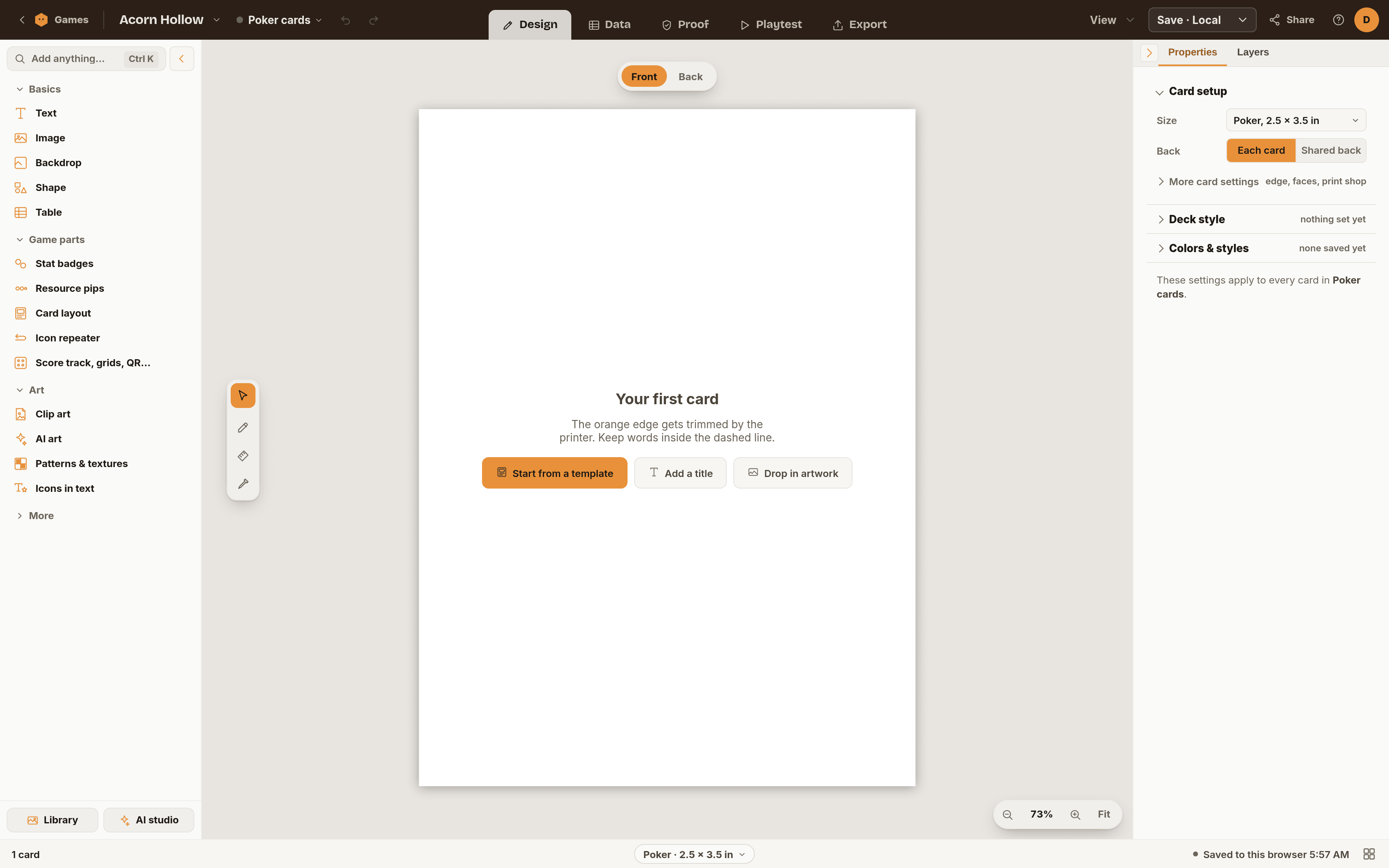
Tip: Chitmunk saves as you work, to the place you chose when you created the game. Change it any time from Where it's saved in the game menu.
The Editor at a Glance
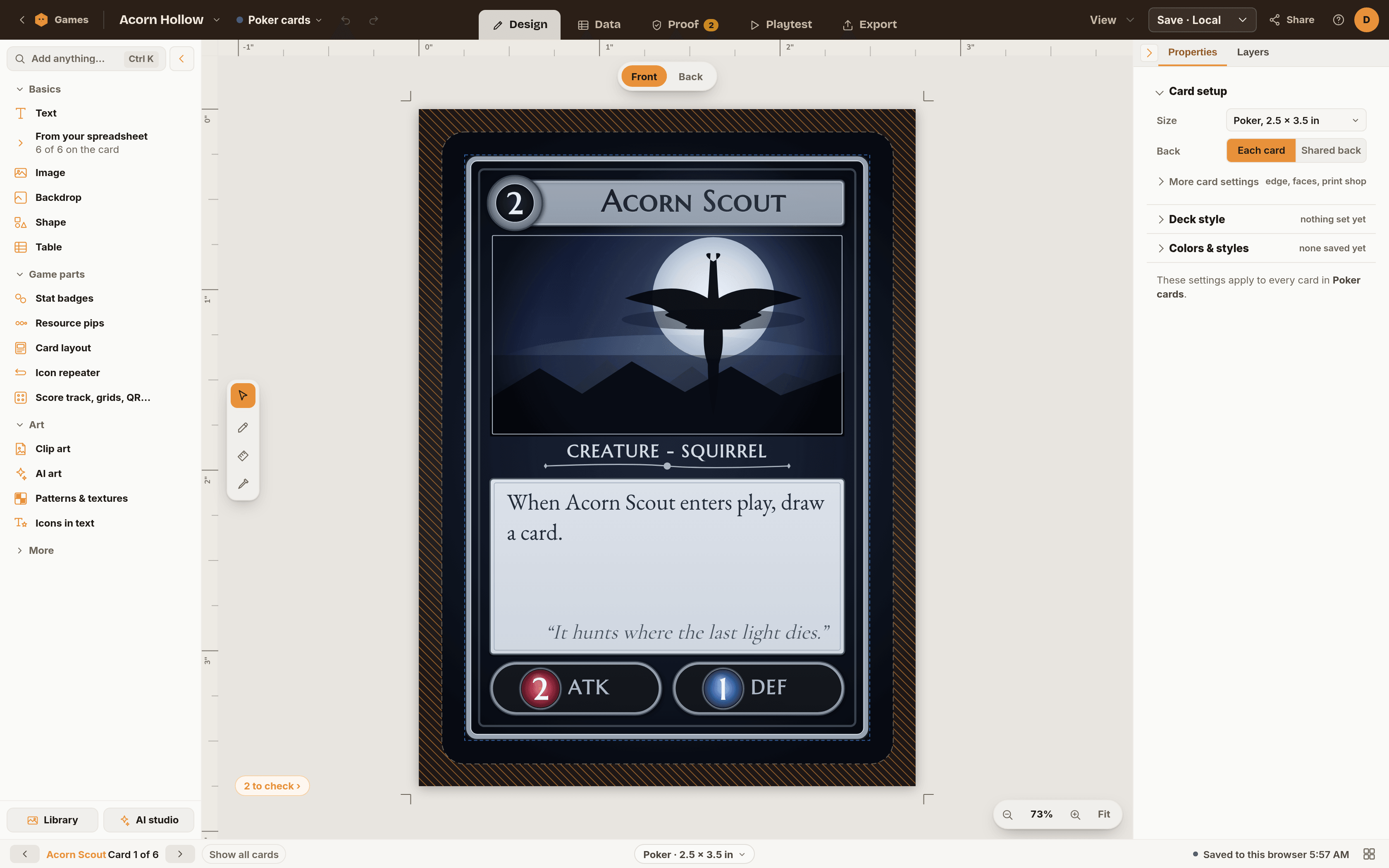
- The bar across the top: Games takes you back to your list. Next to it is your game's name, and the arrow beside the name opens the game menu: Game details, Rename game, Duplicate game, Card size, Starter templates, Version history, Download as file, Open a file, Where it's saved, New game, and Delete game. Undo and redo sit beside it.
- The five stages: Design (the card), Data (your spreadsheet), Proof (what to fix before printing), Playtest, and Export. Proof, Playtest and Export open on your dashboard; Design and Data stay in the editor.
- View, Save, Share, Help, and your account: View turns on the bleed edge, safe area, rulers and snapping. Save saves now, and its arrow chooses Chitmunk Cloud or This browser only. Help holds Help topics, Guides, the Guided tour, Keyboard shortcuts and What's new. Your account menu has Settings, your plan, the dark theme, and Sign out.
- The Add panel (left): tiles for Text, Image, Backdrop, Shape and Table, plus game parts such as Stat badges and Resource pips, art (Clip art, AI art, Patterns and textures), and Map and Frame designer. Tiles show only their name; hover one to see what it does. Once a spreadsheet is attached, a From your spreadsheet group appears under Text.
- The card (center): Front and Back buttons float at the top, zoom controls at the bottom right, and the Select, Pen, Measure and Eyedropper tools on the left edge.
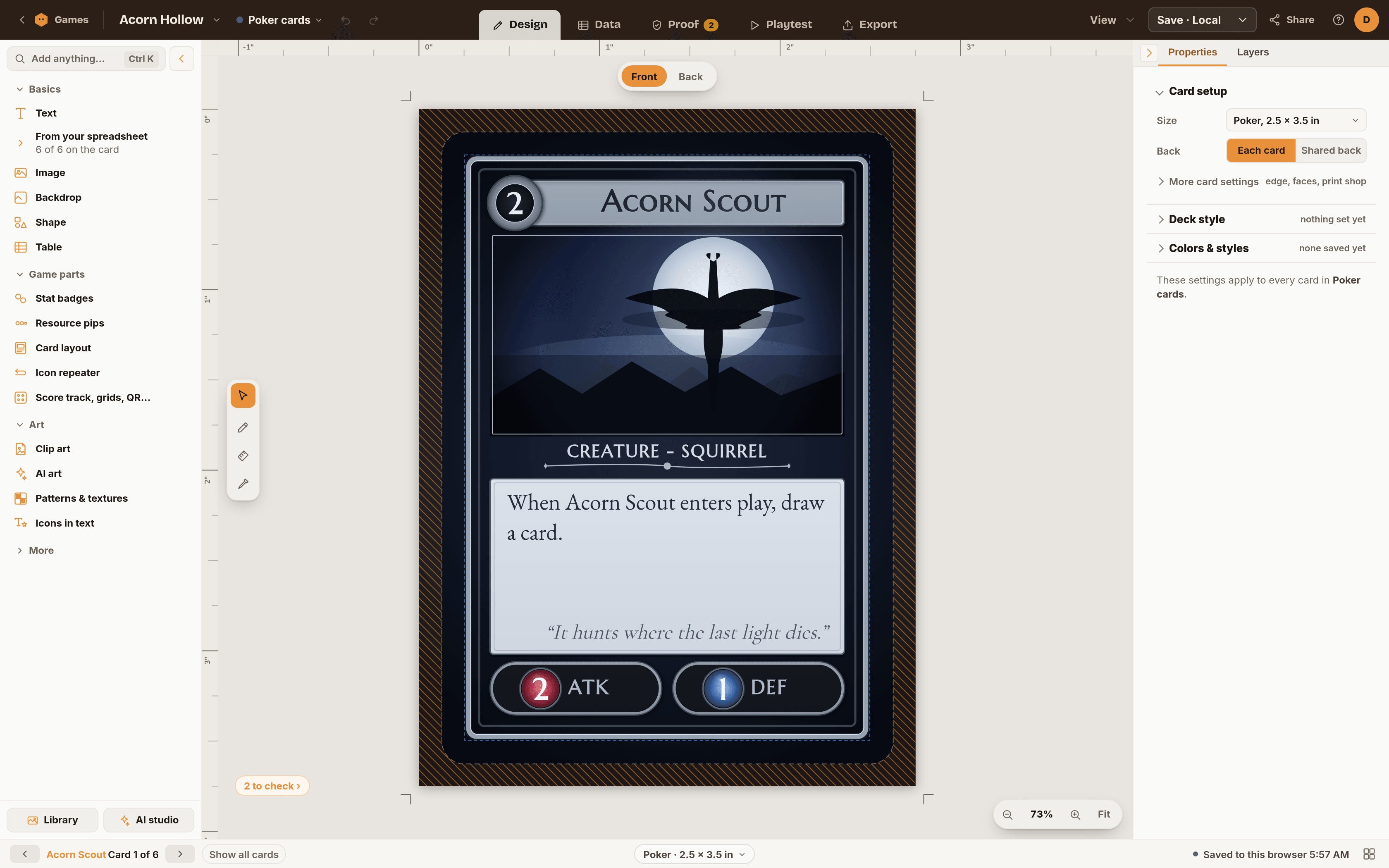
- The properties panel (right): select something and its settings show here. With nothing selected it shows the card itself: Card setup, Deck style, and Colors & styles. Sections start closed, show a one-line summary of their state, and remember whether you opened them.
- Search everything: press Ctrl+K to find any tool, shape, generator, or setting by name.
- The card strip: for a game with more than one card, Show all cards beside the card counter at the bottom opens a strip of every card. It stays hidden until you turn it on.
Note: On macOS, use Cmd instead of Ctrl for all keyboard shortcuts. See Keyboard Shortcuts for the full list.
Add Text and a Picture
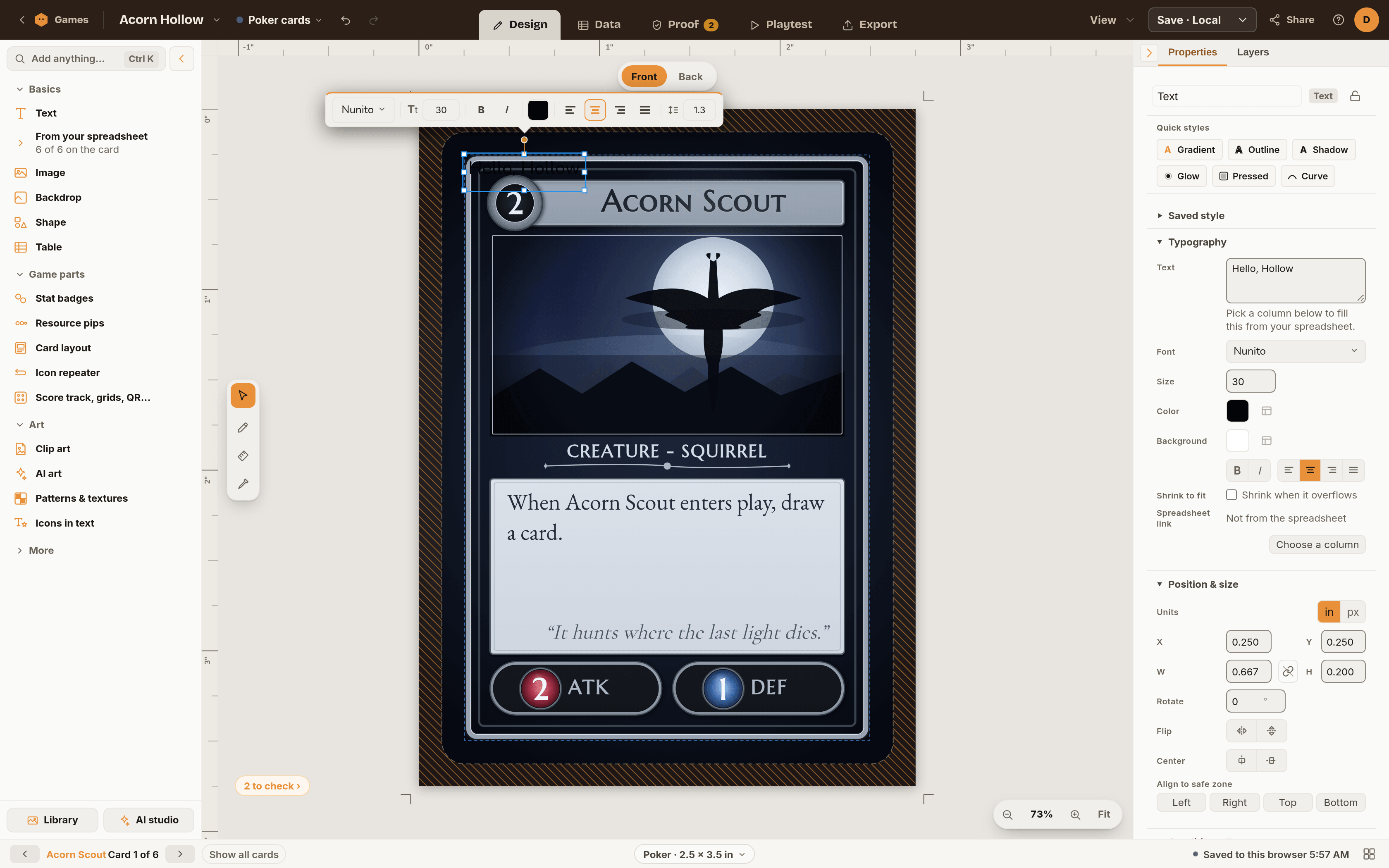
Press Text in the Add panel (or press T) to put a text box on the card. Then:
- Double-click the box on the card and type.
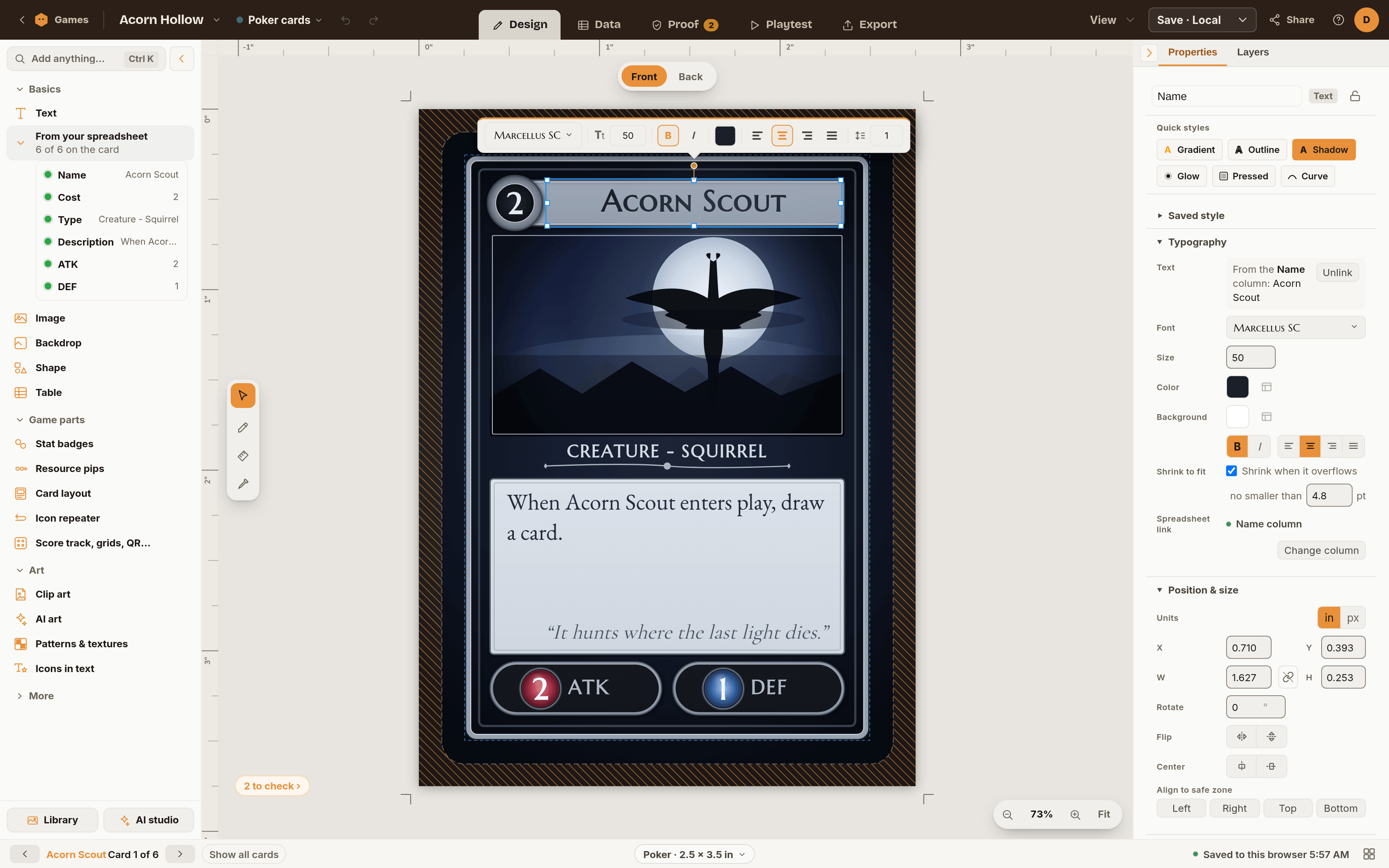
- Use the small toolbar that floats above the box, or the properties panel, to change the font, size, weight, color and alignment.
- Drag the corners of the box to resize it. Switch on Shrink when it overflows in the text settings if you want long text to get smaller to fit.
Press Image in the Add panel and choose a picture from your computer, or drop an image file straight onto the card. In the properties panel, Fit chooses whether the whole picture shows, the picture fills the box (and crops the edges), or it stretches. For ready-made art, Clip art opens icons, board game pieces and patterns. See Asset Browser and Image Editing.
To select, move and resize: click an element, drag it to move it, and drag a corner to resize it (hold Shift to keep its proportions). Hold Shift and click to select several, or drag a box around them. The round handle above a selection rotates it, and Shift snaps to 15 degree steps. Arrow keys nudge by 1 pixel.
Link a Spreadsheet Column
One template can make a whole deck when its text comes from a spreadsheet.
- Open the Data tab. Choose Data source, then Upload CSV or Excel file (or Local spreadsheet under Create new to start blank and type rows in Chitmunk).
- Go back to the Design tab. The Add panel now shows From your spreadsheet with one field for each column.
- Select a text box on the card, then click a field. The box is now linked: it shows
{{Column Name}}and fills in with each row's value.
With no text box selected, clicking a field adds a new linked text box instead, and you can also drag a field onto the card. Use the card counter at the bottom to flip through your cards and see each row's version. A green dot beside a field means it is already on the card. See CSV Data Merge.
Check It in Proof
When a card has something to fix, a to check chip with a count appears beside the card, and the same number shows on the Proof tab. Open Proof to see each problem in plain words, such as text outside the safe area or a picture that will print soft. Each one has a Go to button that selects the element. The chip hides itself when the card is clean. See Print-Ready Checklist.
Print It Once
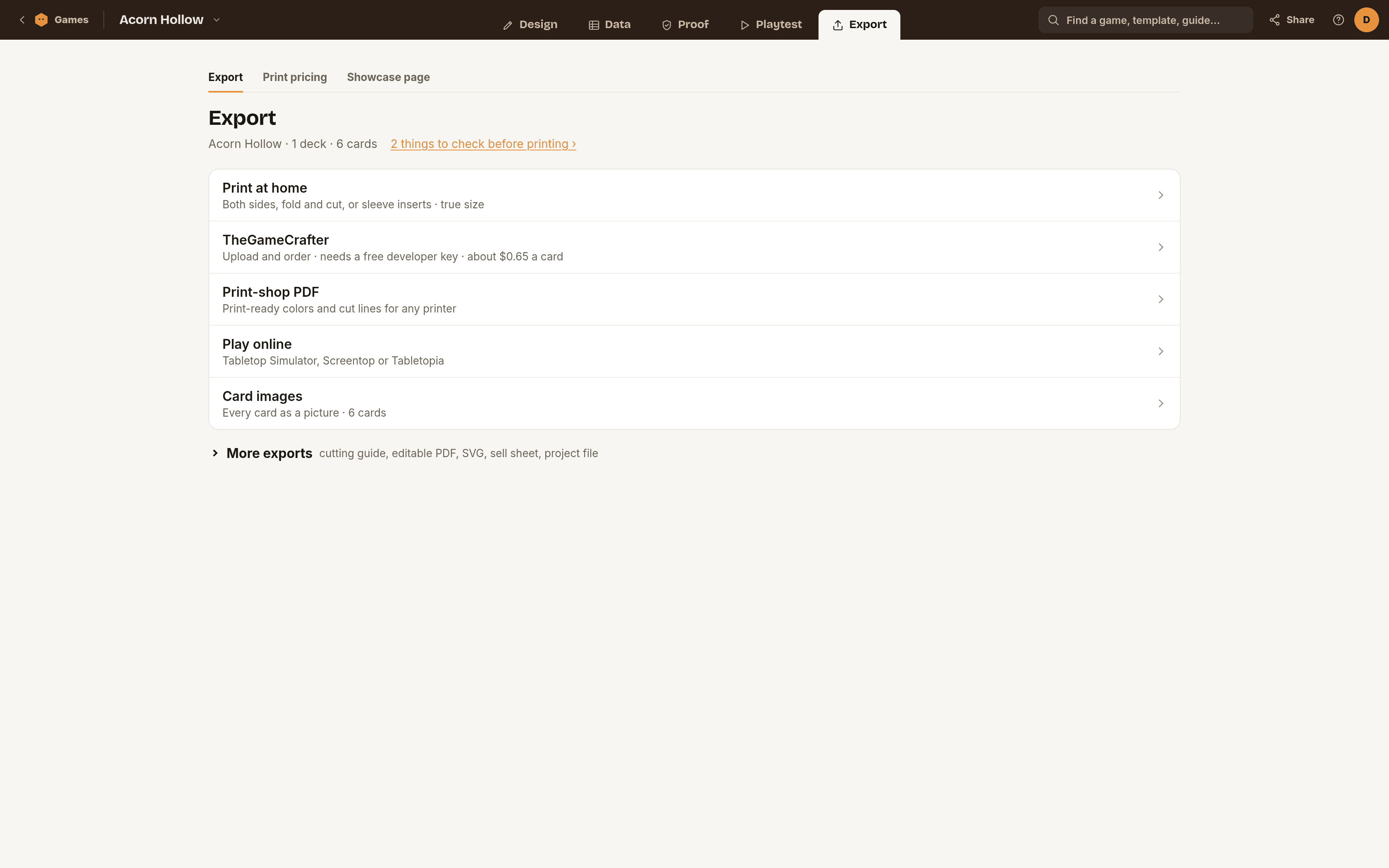
Open the Export tab and choose Print at home. Leave How will you print? on Fronts only, look at the preview of your real cards, and press Make my PDF. Print at Actual size (100%). A first print on plain paper is the cheapest way to find out whether the text is big enough. See the Print at home guide for two-sided printing and every option, and Export Options for the other exports.
Next Steps
- Manage your games: rename, duplicate, find and move games.
- Chitmunk Cloud and sharing: sync between devices and share a game.
- Keyboard Shortcuts: learn the shortcuts to speed up your work.
- Templates: start from a ready-made layout.
- Print-Ready Checklist: prepare your design for professional printing.
- TheGameCrafter Upload: order a printed copy.