Chitmunk Cloud: save and open anywhere
Overview
Laptop at home, desktop at work, a borrowed tablet at the game night: your game should open wherever you are. A game in Chitmunk lives in one of two places. This browser keeps it on the computer you are using. Chitmunk Cloud keeps it online, so you can open it on any computer, get version history, and (on Epic) share it. Both places save as you work. Moving a game from one to the other is one button.
See where a game lives
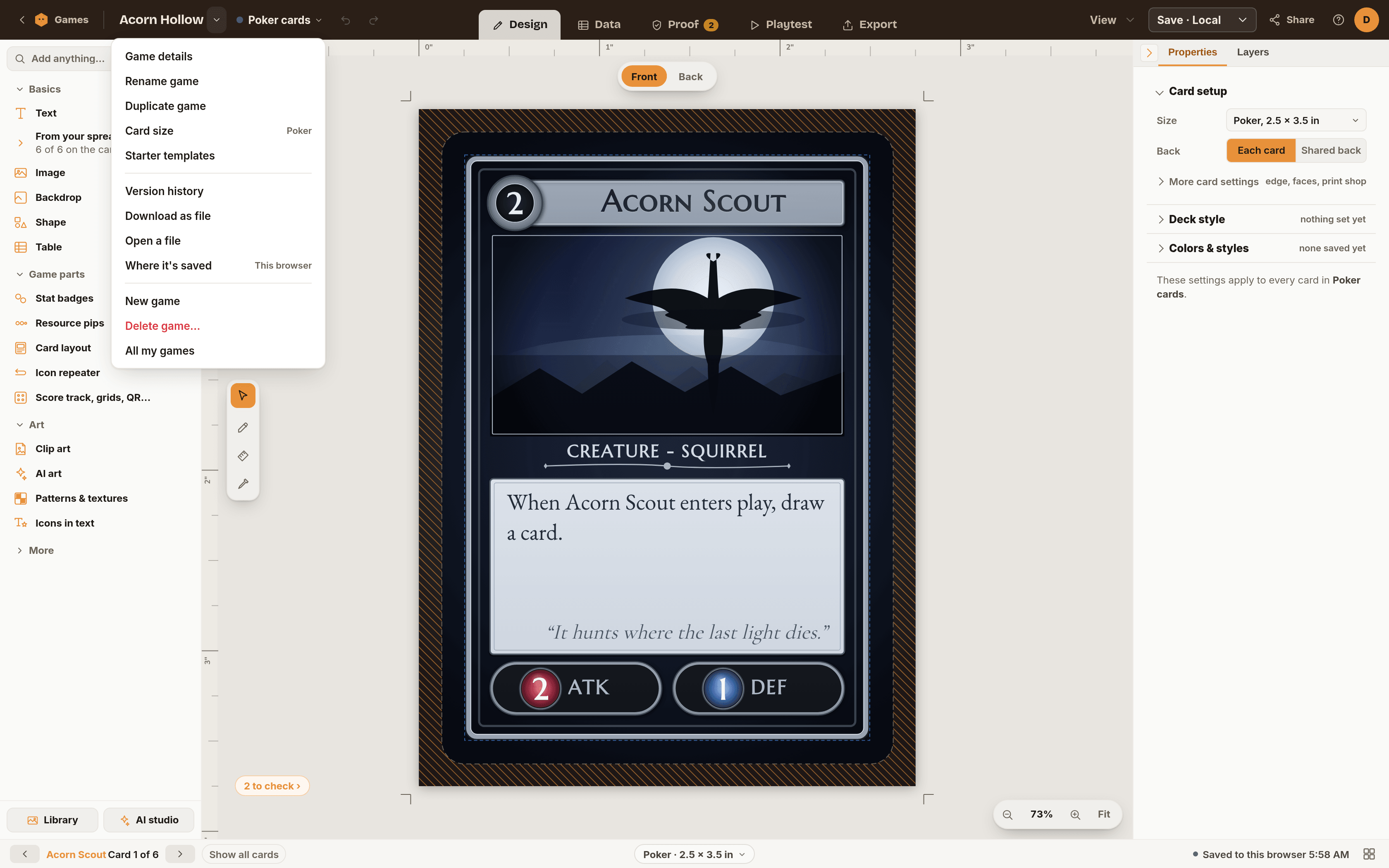
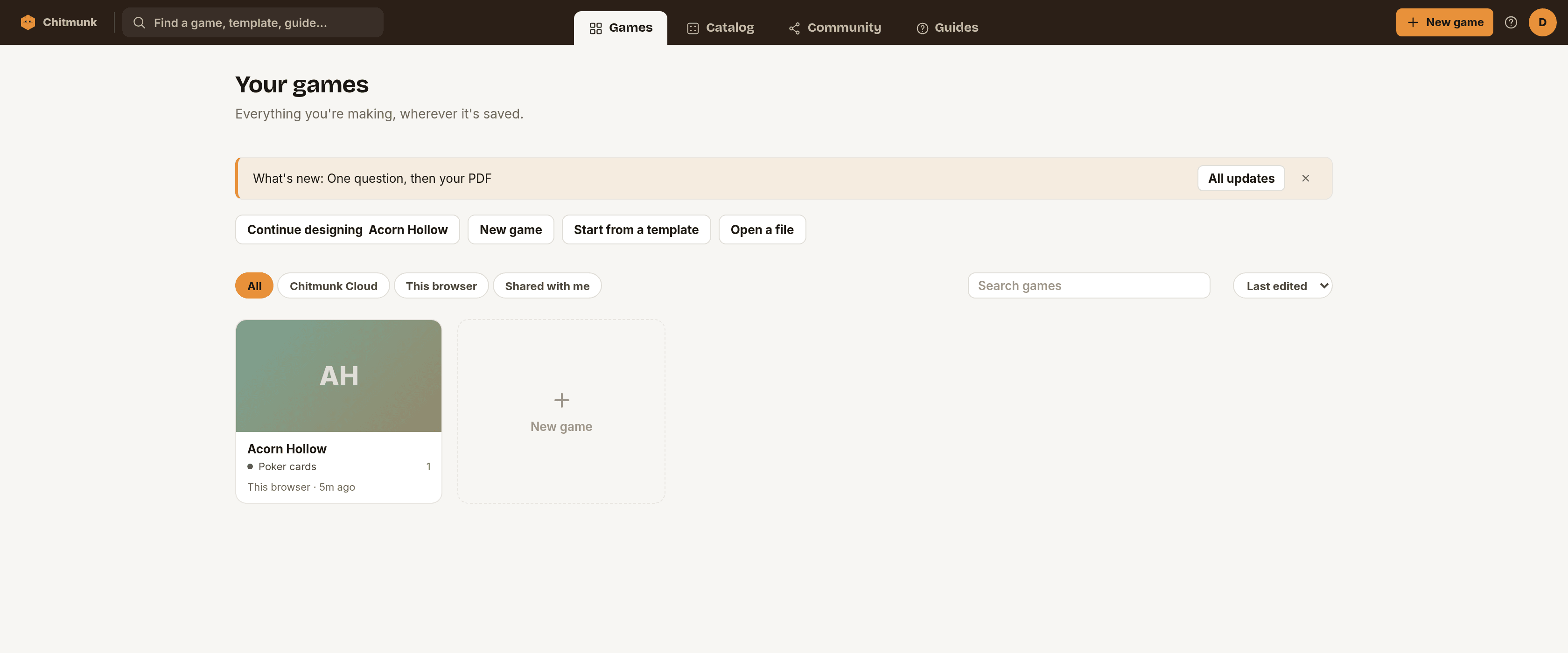
To check, open the Game menu in the top band and choose Where it's saved. The line under the name says Chitmunk Cloud or This browser. On Your games, the tabs All, Chitmunk Cloud and This browser sort your games by place.
Move a game to Chitmunk Cloud
To move a game that lives in this browser:
- Sign in. Moving needs an account.
- Open the Game menu and choose Game details.
- Under Actions, choose Move to Chitmunk Cloud. (On Your games, right-click a game for the same choice.)
- Read the question, then choose Move to Cloud. A progress bar uploads your cards and images.
The game keeps its name, cards, spreadsheet and pictures. Version history starts to collect as you save.
How much room you get
Cloud storage depends on your plan. Images are what fill it up, not cards.
- Common: 500 MB
- Rare: 5 GB
- Epic: 20 GB
Your account menu shows a "Cloud storage" bar with what you have used. If you fill it, auto-saving pauses with a "Cloud storage full" message. Nothing is deleted. Download a file to keep your work, then free some space or choose a bigger plan.
Open a game on another computer
- Go to chitmunk.com and sign in with the same account.
- Open Your games and pick the Chitmunk Cloud tab.
- Choose the game. It opens in the editor with the latest save.
Games kept only in this browser do not travel, which is the reason to move the ones you care about.
Download as a file, open a file
A file is a backup you hold yourself, and a way to move a game without the cloud.
- Download as file (Game menu) saves the game as a
.jsonfile. - Open a file (Game menu, or the button on Your games) opens a
.jsonor.zipfile saved from Chitmunk as a new game.
Trash and restore
A cloud game you delete goes to the trash first.
- On Game details, choose Move to trash and confirm.
- To get it back, open Your games and the Trash tab (it appears when something is in it).
- Choose Restore. The game returns to Chitmunk Cloud.
Games in the trash are removed for good after 30 days. A game that lives only in this browser is deleted straight away, so download a file first if you are unsure.
Games saved on Google Drive or OneDrive
Until October 18, 2026, a game could be saved to Google Drive or OneDrive. Those saves are retired. Games already there still show up on Your games. Open Game details and you will see "Saved in Google Drive" (or OneDrive) with Move to Chitmunk Cloud as the main button. Choose it once and the game is a normal cloud game.
Linking a Google Sheets or Excel file as a spreadsheet for your cards is separate, and it still works.
Troubleshooting
- The Move button is missing. The game is already in Chitmunk Cloud, or you are not signed in.
- A game does not show on my other computer. It is probably saved in This browser. Move it to Chitmunk Cloud from the computer that has it.
- A Drive game will not open. Reconnect Google or Microsoft in Settings and try again. The game is still where it was saved.
- Saving says you need a plan. Your trial or plan has ended. Your games stay viewable, and choosing a plan turns saving back on.
- I deleted a game by mistake. Cloud games: open the Trash tab and choose Restore. Local games: open a downloaded file if you made one.