Manage Your Games
Overview
Rename it, duplicate it, move it, publish a page for it, send it to the trash (and fish it back out). A game is one project: its decks, cards, images and spreadsheet. Everything you do to a whole game, as opposed to one card, lives in one place: the game menu. This guide walks through each item, then the pages it leads to.
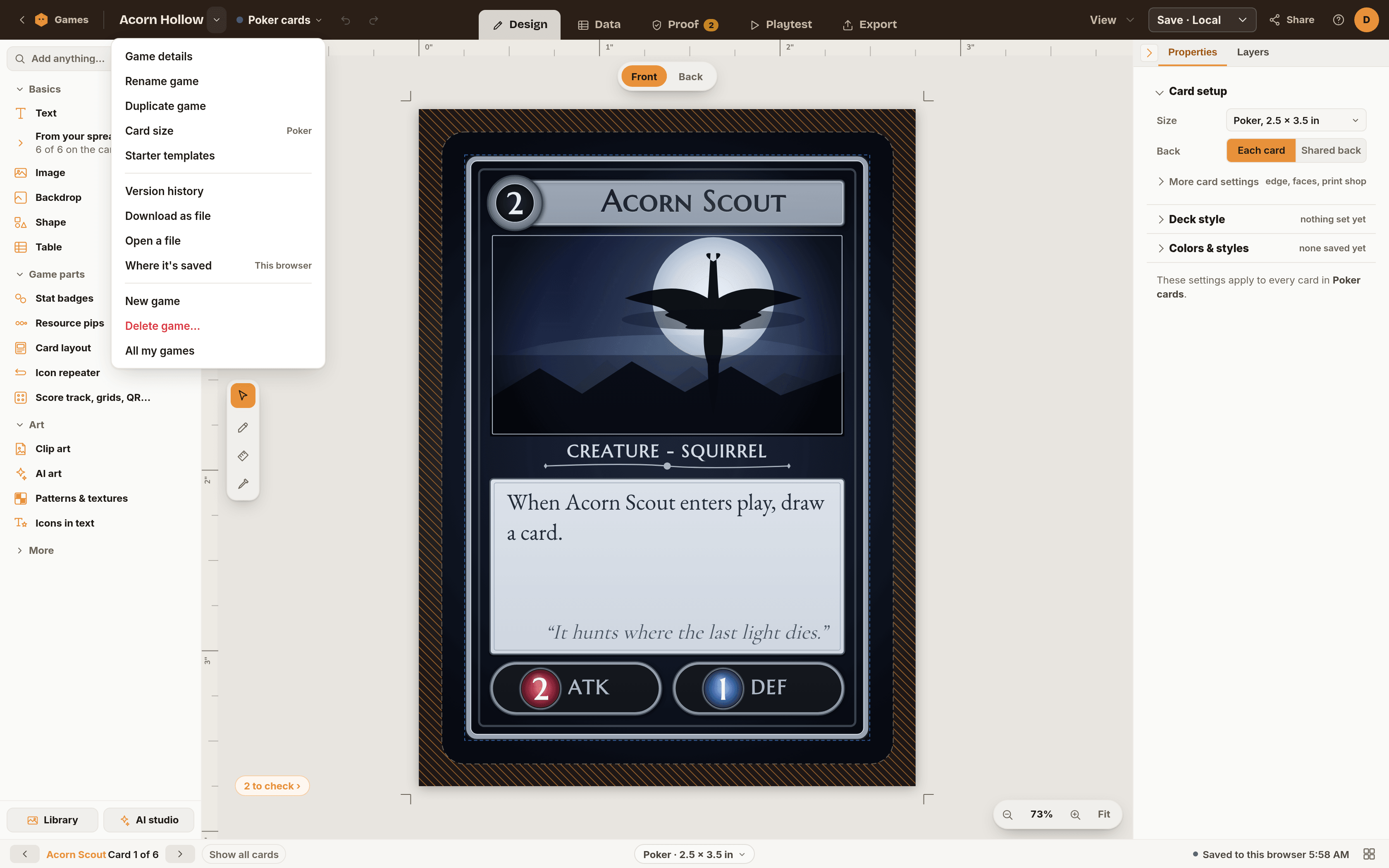
The game menu
Click the game name in the top bar. The menu lists, in order:
- Game details: cover, players and play time.
- Rename game: edit the name where it is.
- Duplicate game: make a copy named "(copy)". Good for trying a bold change safely.
- Card size: see Change Card Size with Magic Resize.
- Starter templates: browse ready-made designs.
- Version history: go back to an earlier save. See Version History.
- Download as file: saves the whole game as a .json file you can keep as a backup.
- Open a file: opens a .json or .zip file that you saved from Chitmunk.
- Where it's saved: shows This browser or Chitmunk Cloud and opens the Save options.
- New game and Delete game.
- All my games: your full list.
On the dashboard pages (outside the editor) the menu also shows Library, for images, fonts and icons, and AI studio. Inside the editor those two are already at the bottom of the Add panel.
Game details
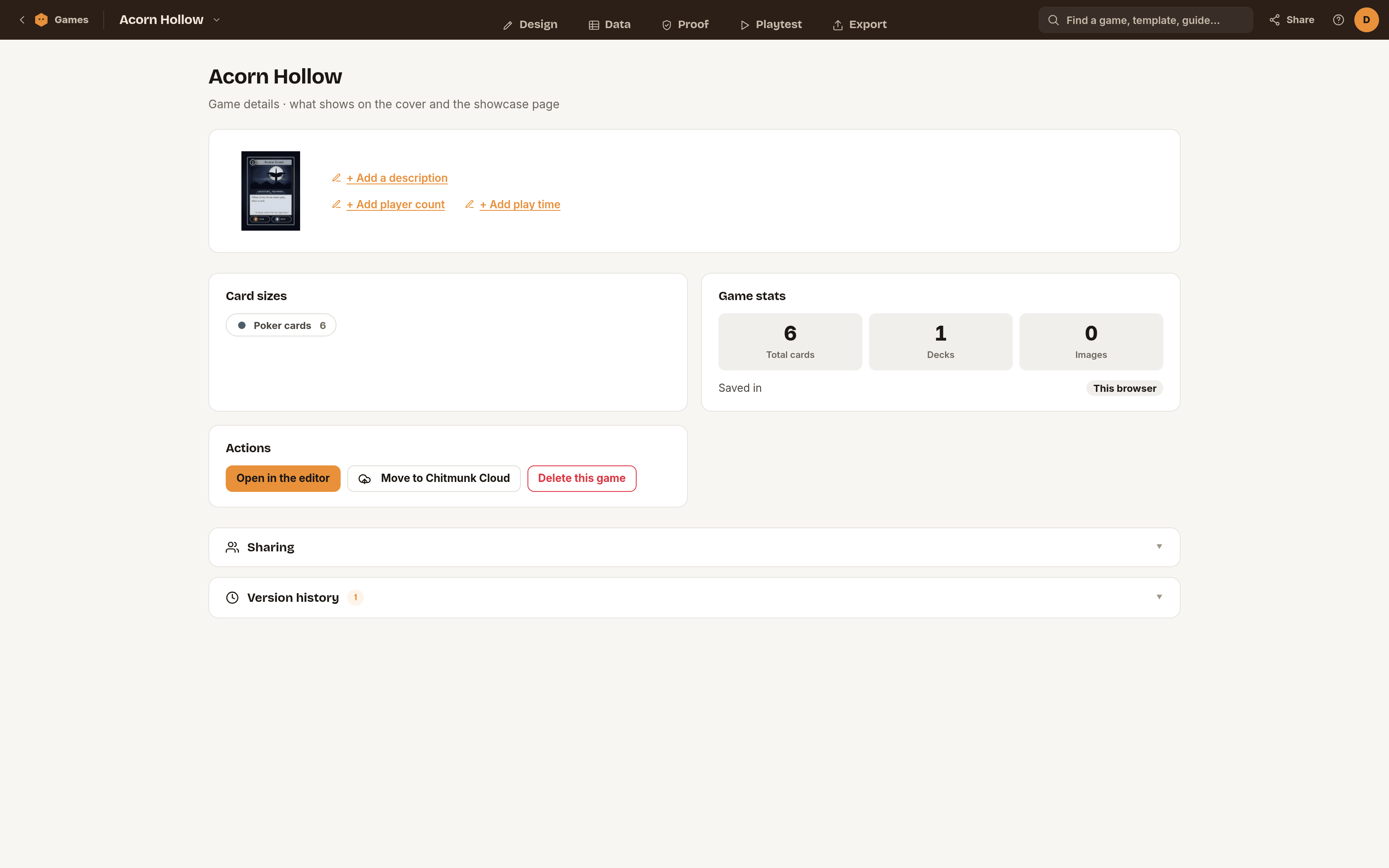
Choose Game details to open the page for this game. It shows what appears on the cover and on your showcase page.
- Cover. Click the square to upload a picture. Without one, Chitmunk shows a preview of your cards, or your initials.
- Description. Click Add a description and type a line or two.
- Players and Play time. Click to enter a minimum and maximum, such as 2 to 4 players or 20 to 40 min. Save with the check mark.
- Name. Click the title to rename.
Below are totals for cards, decks and images, where the game is saved, buttons for Open in the editor and Share (cloud games), and a collapsible Version history.
Showcase page
A showcase page is a public web page for your game, with a link you can share with playtesters or publishers. It needs a game saved in Chitmunk Cloud. A game saved in this browser offers Move to cloud first.
- Open the Export tab and choose Showcase page.
- Switch the page to Public. Private means the link shows "not found" to everyone but you.
- Add a one-line Headline.
- Under What to show, tick what visitors see: Cover, Sample cards (and how many), Rules booklet, Players & time, Playtest sign-up.
- Choose Save page, then Copy link.
What gets published is a snapshot: your headline, the cover, small preview pictures of the cards you chose, and the extras you ticked. Your spreadsheet and your project file are not published. Use Publish a new snapshot after you change your cards.
Delete and restore
Choose Delete game in the game menu. What happens depends on where the game lives.
| Saved in | What Delete does | Can you undo it? |
|---|---|---|
| Chitmunk Cloud | Moves the game to the trash | Yes. Restore it within 30 days. |
| This browser | Deletes the game | No. Download it as a file first if you might want it back. |
Right after a cloud game moves to the trash, a message offers Undo. Later, open All my games, choose the Trash tab and click Restore. The game returns to Chitmunk Cloud.
All my games
This page, titled Your games, lists everything you can open.
- Tabs. All, Chitmunk Cloud, This browser, Shared with me, and Trash. Trash appears only when something is in it.
- Search games. Type part of a name.
- Sort. Last edited, Name A to Z, or Created.
Troubleshooting
- A game is missing from the list. Check the tab. A game saved in this browser will not show under Chitmunk Cloud, and one on another device will not show at all until it is moved to the cloud.
- There is no Trash tab. It appears only when a cloud game is in the trash. Games deleted from this browser are gone.
- Copy link is greyed out. Save the page first. The link exists once the page is saved.
- Visitors see "not found". The page is still Private. Switch it to Public and save.
- Open a file does nothing. It takes a .json or .zip file saved from Chitmunk. Other files are not recognized.
Ready to try it?
Open the editor, it is free to try. Your games live under the game name.
Start Designing