Decks, faces and card backs
Overview
Heroes, monsters, items, and the rules card nobody reads until turn three: a game usually has more than one kind of card. Each kind is a deck. A deck has its own card size, its own spreadsheet of cards, and two faces: a Front and a Back. This guide covers how to switch faces, share one back across a whole deck, and manage several decks in one game.
Switch between Front and Back
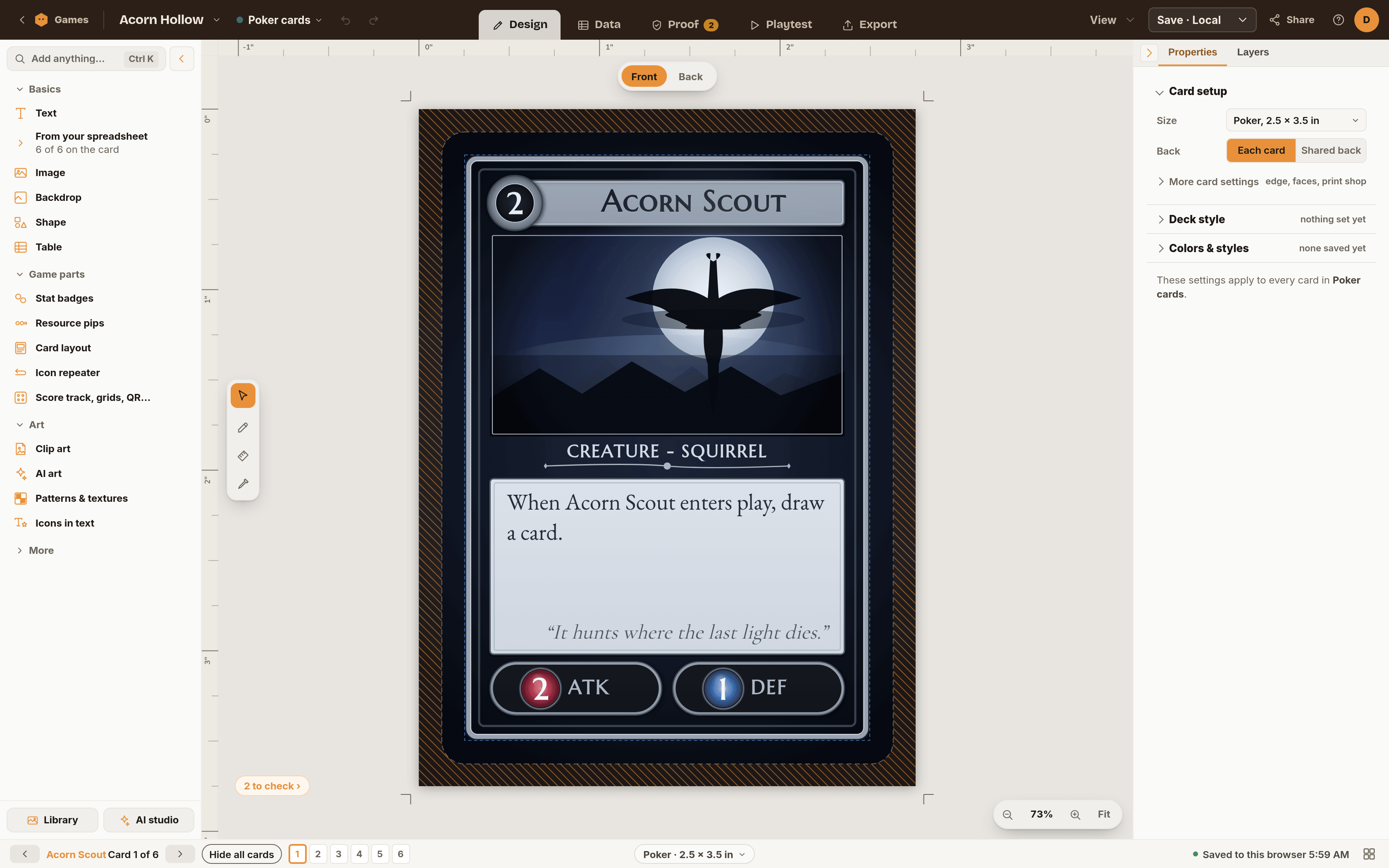
The Front and Back buttons sit in the editor toolbar. Choose one and the canvas shows that face. Your selection clears when you switch, so you never move a front element by accident while looking at a back.

Use one back for the whole deck
Most decks print the same back on every card. To do that once:
- Choose Back in the face bar.
- Tick One back for the deck.
- Design the back once. Every card in the deck uses it.
The checkbox shows only while the Back is open, so the Front stays uncluttered. Untick it when you want each card to have a different back, for example hidden-role cards. A toast confirms the change. The same choice is also in the inspector's card setup, under Back.
Add and name a deck
Decks appear as tabs above the canvas, each showing the name and the number of cards in brackets.
- Choose the + button at the end of the tabs.
- Pick a card size from the list.
- Chitmunk adds a deck with a sensible name and opens the name for editing right on the tab. Type your own name and press Enter.
- You are asked "Start from a template?" Choose Pick a template or Start blank.
To rename later, double-click the tab name, or right-click it and choose Rename.
Duplicate, reorder and delete
Right-click a deck tab for its menu:
- Rename and Color: the color dot helps you spot decks at a glance.
- Card size: change this deck's size without touching the others.
- Duplicate: a copy named "(copy)", design and spreadsheet included. Handy for a variant that shares most of a layout.
- Move up and Move down, or drag a tab to a new spot.
- Export: send just this deck out.
- Delete: asks first, and is not available when it is your only deck.
One size and one spreadsheet per deck
A poker-size hero deck and a tarot-size boss deck can live side by side, because each tab has its own card size. Each tab also has its own spreadsheet, so the Copies column, card names and other columns belong to one deck at a time. See CSV Data Merge for linking a spreadsheet.
Copy elements between decks
- Select what you want on a card, then press Ctrl+C (Cmd+C on a Mac).
- Click another deck's tab.
- Press Ctrl+V. The copies land on that deck's card, named "(pasted)".
The copy carries its fill, font and position. If the new deck has a different card size, check the layout, or use Magic Resize to scale a design between sizes.
How decks show up when you print and upload
- Print at home: with two or more decks, a Decks list lets you tick the ones to print. Each deck has its own Copies menu if it has a Copies column, plus options for deck names as headings and a contents page. See Print and cut your prototype at home.
- Both sides: if every included deck has a blank back, the dialog warns you that backs will print empty, and offers Design the back.
- Export: image, PDF and other exports include every deck unless you pick fewer.
- TheGameCrafter upload: the review step lists one line per deck, such as "Poker cards → new Poker Deck · 12 cards (24 prints)". Change where each deck goes lets you include or skip a deck, pick an existing TheGameCrafter deck, and see a price estimate "per copy". A deck over TheGameCrafter's card limit is split automatically, and the upload says how many decks it becomes. See TheGameCrafter Upload.
Troubleshooting
- I can't find One back for the deck. Open the Back face first. It hides on the Front, and it shows only for deck-style card sizes.
- Every card has the same back, but I wanted different ones. Untick One back for the deck, then design each back.
- Delete is greyed out. A game needs at least one deck. Add another first.
- Pasted elements ended up off the card. The other deck has a different size. Select them and move them in, or resize the design.
- A deck is missing from Print at home. The Decks list shows only when you have two or more decks, and it lists only decks with a card size set.