How to Make a Dial Wheel and a Rulebook Booklet
To make a dial wheel in Chitmunk, pick Small Dial or Dual Dial as your card size, type one label per line under Wheel segments and choose Add segments. Each label gets its own slice, sized to the window. To make a rulebook, pick a booklet size, drag a page's number in the Pages row to move it anywhere (even onto another spread), and type {{_pageNumber}} in a text box to number every page.
Both arrived in version 0.35.0. Here is what each one does, with one example game for each.
Why dials and booklets
Some pieces are hard to fake with a pen and an index card. When designers tell us what they wish they could build, two keep coming up:
- A dial for a spinner in a kids' game, a health or condition tracker, or a secret choice that everyone reveals at once.
- A booklet for the rules, a player reference or a short story that sets the scene.
Both used to mean another program, a ruler and a lot of guessing. Now they sit in the same game as your cards.
What a dial is
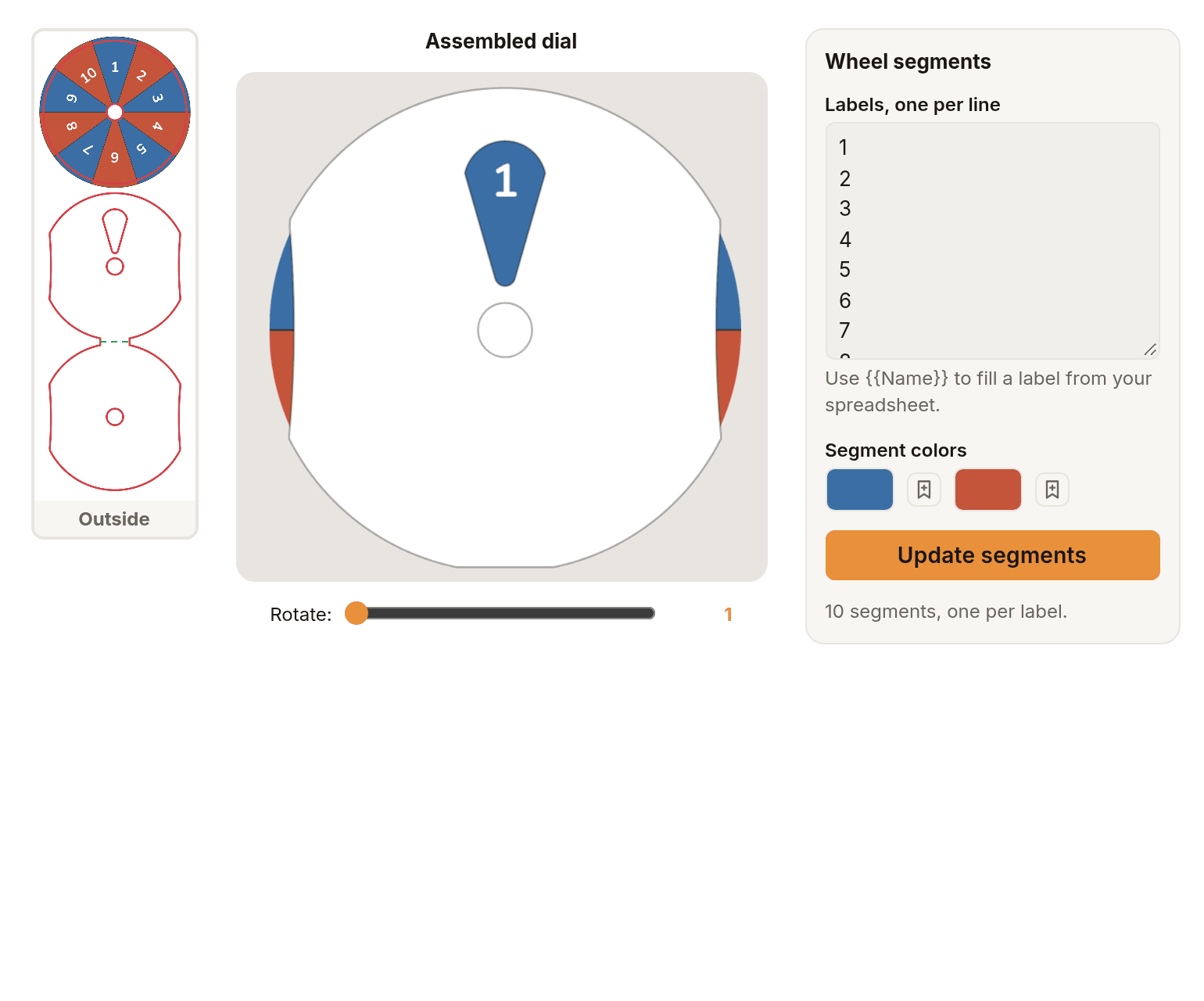
A dial is three parts cut from one printed sheet: a wheel, a cover with a window and a pivot hole, and a back. The wheel turns between the cover and the back, so one label shows through the window at a time. The Small Dial has one wheel under a teardrop window; the Dual Dial has two wheels, each under its own square window.
The hard part was always the geometry: how wide each slice is, where the label goes so it lands in the window, and which way up it reads. Chitmunk does that part for you.
Worked example: a spinner for a kids' race game
Say you are making Mossbottom Dash, a race game for young children where frogs hop along a path of lily pads. Instead of a die, each player turns a dial to see how far to go.
- Under Card setup, set Size to Small Dial. The Dial Designer opens in place of the card.
- Under Labels, one per line, type eight lines: Hop 1, Hop 2, Hop 3, Back 1, Hop 2, Hop 1, Splash, Hop 3.
- Pick two Segment colors, a pond green and a sunny yellow, and choose Add segments.
You get a wheel with eight slices, alternating green and yellow, each label upright when its slice is under the window. Hop 1 starts in the window. The label color is picked so it reads on both segment colors.
Now turn it. Under Assembled dial, drag the dial or use the Rotate slider. The wheel moves one slice per step, and the label in the window is named next to the slider, so you can check every position before you print.
After the first playtest the children want a bigger surprise, so you change Splash to "Splash! Swap places" and choose Update segments. The same wheel updates and keeps any font or border changes you made. Long labels shrink to fit, and one Undo brings the old labels back.
A condition tracker works the same way on the Dual Dial: numbers 0 to 10 on one wheel, and conditions like Steady, Singed, Soaked and Dizzy on the other. Choose Top window or Bottom window first to pick which wheel the panel writes. A wheel takes 2 to 24 labels, and 8 to 12 is a comfortable range for reading through a small window.
Labels can also come from your spreadsheet: type {{Name}} as a label and every row gets its own wheel. The Dial Designer guide covers the window, the sheet layout and art on the cover.
Booklets that keep their pages in order
Choose a booklet under Card size and the editor shows your pages as facing spreads, like an open book: the front cover alone, then pairs of pages, then the back cover. You design in reading order and Chitmunk keeps it that way.
Two things are new:
- Move a page to any spot. The Pages row under the spread has a numbered button for every page. Drag a number onto another number and the page moves there, even onto a different spread. You can also right-click a page and choose Move to page…, or press Tab to reach it and hold Alt with an arrow key.
- Page numbers that keep up. Type
{{_pageNumber}}in a text box and it shows that page's number.{{_totalPages}}shows how many pages there are. Move a page, add one, delete one, and every number follows.
Worked example: an eight-page rulebook
Back to Mossbottom Dash. The rules need a cover, a "what's in the box" page, setup, a turn, the dial, winning, and a back cover with credits. That is seven pages, and a folded, stapled booklet prints best in multiples of four, so plan for eight and keep one for a picture of a finished game.
- Choose a booklet size under Card size, then click + Add page until the header says 8 pages.
- Design page 2 with a footer: a small text box at the bottom that reads
Page {{_pageNumber}} of {{_totalPages}}. - Right-click page 2 and choose Duplicate page to start the next page from it, footer and all.
Halfway through, a tester says they wanted to know how to win before learning a turn. Drag the Winning page's number in the Pages row onto the Turn page's number. A note says something like "Page 6 moved to page 4", with an Undo button. Look at the spreads: every footer now shows the right number, with no retyping.
One thing to know: while you edit a single page full size, the box shows the placeholder itself. The real numbers show in the two-page view and in every export. The Booklet Designer guide covers the safe area, the spine and importing a document.
Before you print
A screen can only tell you so much about a piece you hold in your hand.
- For a dial, print the sheet and the Cutting guide (under More exports in the Print stage), cut the parts out and pin them at the pivot. Turn it a few times.
- For a booklet, click through every spread, then run the Checks in the Proof stage, which look at every page.
- For both, look at TheGameCrafter's proof before you order.
To see what each plan includes, visit the pricing page.
Make your first dial
Open a game, set the size to Small Dial and type your labels. Free to try for 7 days.
Start free trial